Table of contents
How do I get login credentials for the cogvis platform?
To gain access to the cogvis platform, please contact your facility director, nursing director, charge nurse or ward manager. In general, these team members have access to the platform and are authorized to create additional accounts.
Alternatively, our support team or your Customer Success Manager can create an account for you. Please provide your email and specify if you need read-only access or permissions to change sensor settings.
Once the account is created, an email with temporary login credentials will be sent automatically. Please ensure the email address you entered is valid.
The temporary login credentials are valid for 30 days. Please log in within these 30 days.
I cannot log in with my temporary login credentials. What could be the reason?
The temporary login credentials, sent automatically when platform access is created, are valid for 30 days. If you do not log in within this period, the credentials will expire.
To receive new login credentials, the unused access must first be deleted and recreated. The new credentials will then be valid for 30 days. Please log in within this period to set your own password and access the platform.
I forgot my password. How can I reset it?
If you forgot your password, you can reset it via the login page: go to eu.cogvis.ai/login and click on Forgot password?.
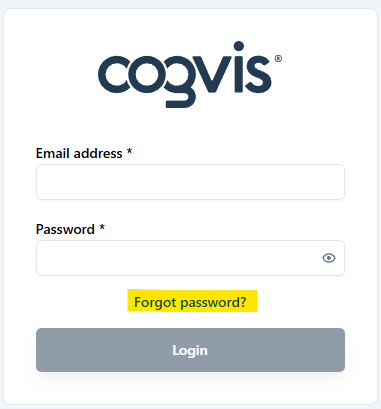
Enter your email address and click on Send code.
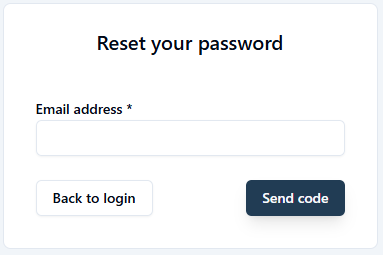
You will receive an email with a verification code. Enter it, create a new password, and Submit.
If you have trouble resetting your password, please contact our support team.
Which types of permissions are available for the cogvis platform?
The cogvis platform currently supports two permissions. There are accesses with:
- Read and write permissions (settings can be changed)
- Read-only permissions (settings can only be viewed but not changed)
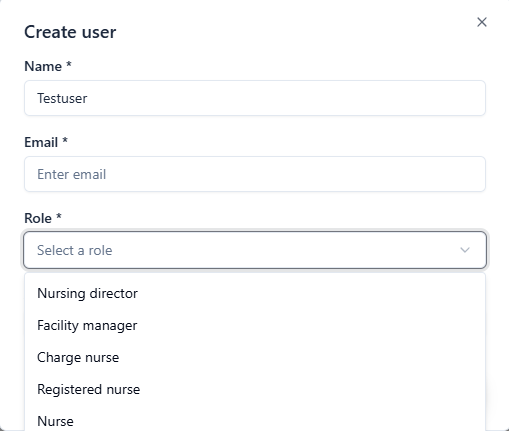
These permissions are assigned to individual roles. Please ensure that you select the correct role when creating users. The following roles are authorized to change settings:
- Facility director
- Nursing director
- Charge nurse/ward manager
- Registered nurses
- In-house technician
Only the role Nurse can view settings but do not change them.This role is particularly suitable for nurse assistants.
How can I create an account for my employees?
Users with the role of facility director, nursing director or charge nurse can create platform accesses for employees and colleagues.
To do this, select an area on the left navigation bar and go to the Settings tab.
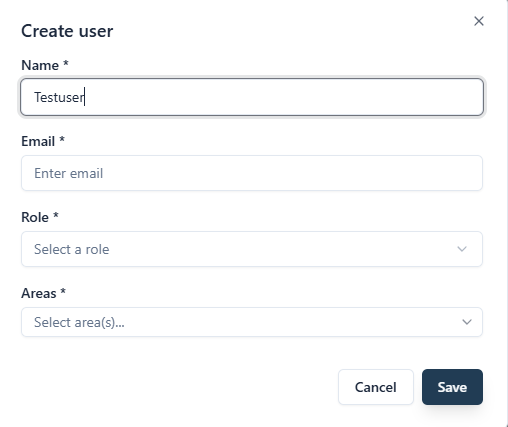
You will then find the Create user button on the right. Click on it to create an user.

A new window will open. Enter the person's name and email, select their role, and specify the area they can access. To finish, click on Save. The temporary login credentials will be sent automatically.
How can I delete the access of former employees?
To delete individual users, first select an area in the left navigation bar and then the Settings tab. This will take you to the user administration.

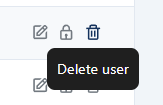
Select the user and click on the bin icon to delete their platform access.
How can I activate two-factor authentication?
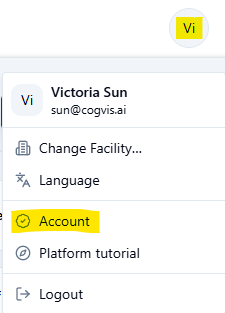
Click on the circle with your initials at the top right of the cogvis platform and then go to Account.
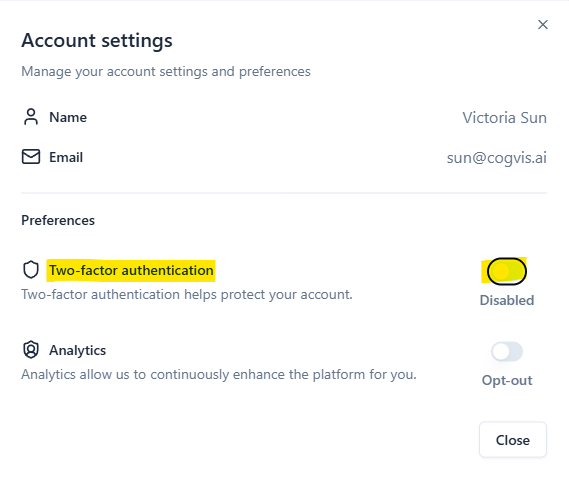
The account settings will open. Under Two-Factor Authentication you can start the activation.
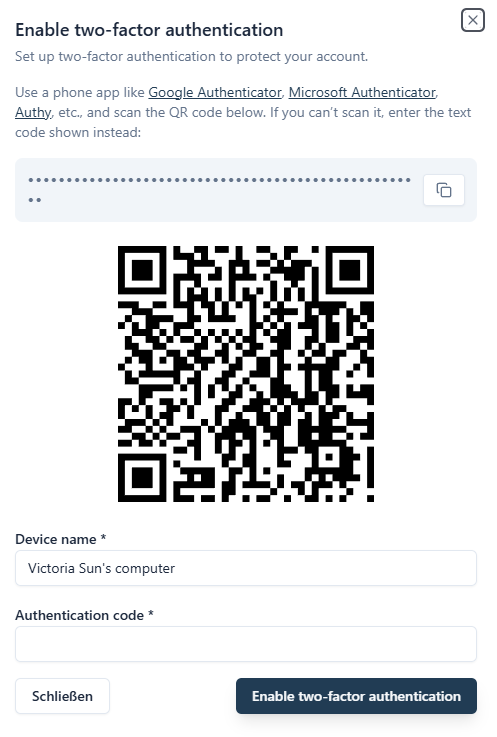
Follow the individual steps to complete the two-factor authentication.
How can I switch between the old and new platform interface?
If you are currently still using both platform interfaces, you can easily switch between the views at any time.
If you are on the old platform interface, click on Try our new UI!, to access the new interface.

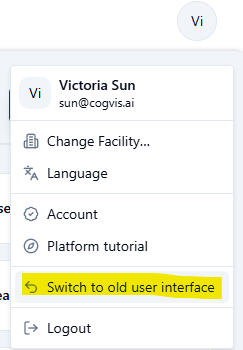
If you want to switch from the new platform interface to the old one, click on the circle with your initials at the top right of the cogvis platform and then on Switch to old user interface.