

Table of contents
My sensor is offline. What does this mean?
If your cogvis companion appears as offline on the platform, it may be due to one of the following reasons:
- No power
- No internet connection
First, go to the room and check if there is a red light behind the black sensor cover. If not, it indicates that the sensor has no power and
- for Gen 1.8: the power supply cable has been unplugged.
- for Gen 2.0: the sensor module is not docked correctly.
Depending on the sensor generation, please plug the cable back in or dock the sensor module again.
Once the sensor has power again, it will boot automatically. After a few minutes, refresh the platform in your browser - the sensor should now appear as active.
If the cable is plugged in or the sensor module is docked correctly ,the red light is visible but the sensor is still offline, it is likely due to a missing internet connection. In general, the sensor automatically establishes an internet connection once a network is found. If the sensor does not automatically re-establish an active internet connection, unplug the cable, plug it back in after a few seconds or re-dock the sensor. A few minutes later, refresh the platform in your browser. The sensor should now appear as active again.
If the internet signal is too weak, you can also connect the sensor to Wi-Fi. Please contact our support team for assistance.
It may be necessary for your internal IT department to open specific ports in order to allow the sensors to connect to Wi-Fi. The required ports are as follows:
- Port 53 UDP and TCP on 8.8.8.8
- TCP port 80 on cogvis.at
- TCP port 5671 to the outside (general)
- TCP port 443 to registration.fearless-system.com or 212.186.122.20
My sensor is paused. What does this mean?
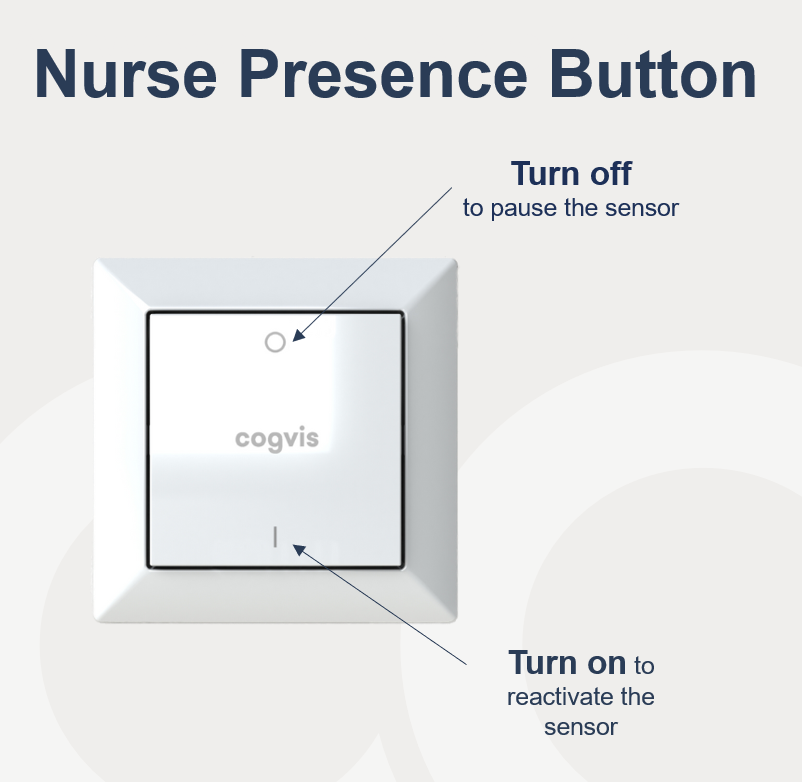
The cogvis companion can be paused to avoid unwanted alarms during care. For this, the rooms get equipped with a nurse presence button.rn ausgestattet. DrückPress the O button when entering the room to deactivate the sensor for a certain period of time. The sensor will appear aspaused on the platform.
My sensor is inactive. What does this mean?

If the cogvis companion appears as inactive on the platform, it may be due to the following reasons:
- Incorrect/unfavourable orientation
- Strong sunlight
- Defective 3D sensor
Go into the room and check the orientation in the first step. When aligning the sensor, make sure that it has a good view of the bed and the neighbouring floor area. Please also make sure that the sensor is not twisted (e.g., against the wall) or that objects (e.g., open windows, cupboard doors) restrict the sensor's field of vision. Then check the field of view again on the platform.
If this status occurs frequently at the same time and in rooms with large windows, strong sunlight is most likely restricting the view from the sensor. In this case, try closing the curtains or blinds during sunny hours. Then, check the field of view again on the platform.
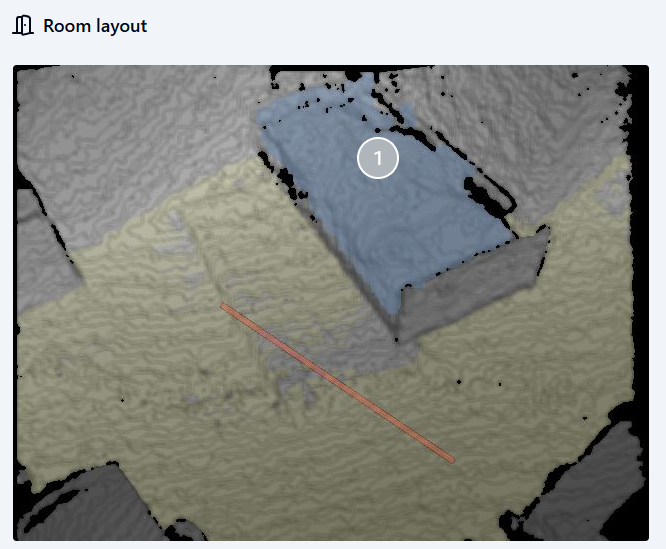
If the sensor remains in an inactive status or you cannot check the field of view via the platform, please contact our support team.
My sensor is deactivated. What does this mean?

While the cogvis companion can be deactivated for a certain period of time when paused via the nurse presence button, there is also the option of deactivating the sensor via the platform for an indefinite period of time.
This has the advantage that if rooms are unoccupied for several days - e.g., if residents are hospitalized - the sensors can be deactivated on the platform for an indefinite period of time without deleting the settings. The same applies to therapeutic sessions in hospitals that occur at different times each day and vary in duration. Once the sensor is reactivated on the platform, it restores the settings that were in place before deactivation.
To deactivate a sensor, first click on the three dots in the room list or grid view in the overview of the respective area and then on Deactivate sensor.
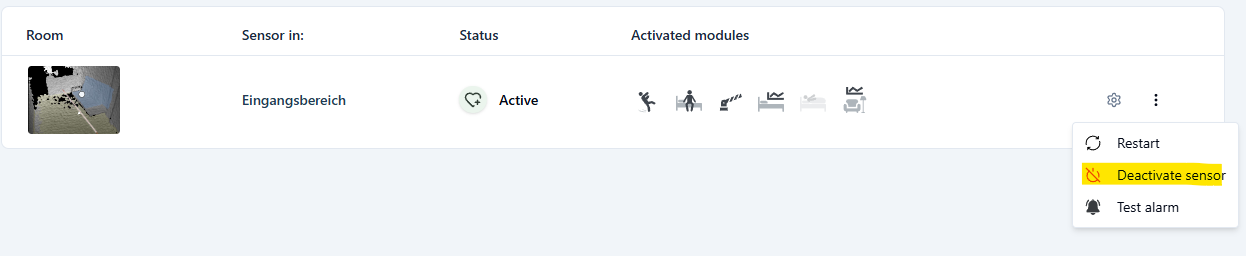
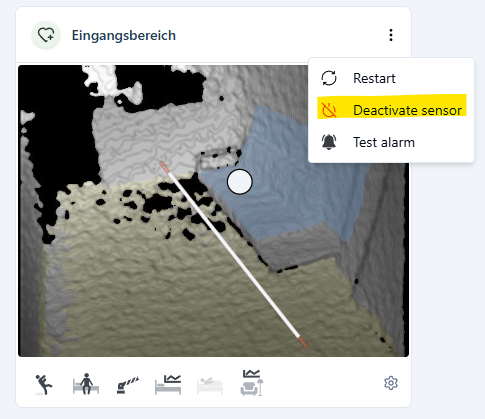
Alternatively, you can also directly go to the room overview and undock the sensor there.

As soon as you try to deactivate a sensor, you will receive the following warning:
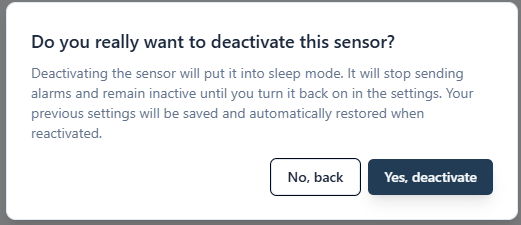
If you really want to deactivate the sensor, click on Yes, deactivate.
The status now changes to deactivated.

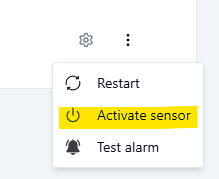
To reactivate the sensor, follow the same steps as for deactivation. This time, click on Activate Sensor.
My sensor is active. What does this mean?

If the cogvis companion appears as active on the platform, it means that
- your sensor is supplied with power,
- has an active internet connection,
- is connected to the platform and
- all modules and algorithms run smoothly.
Changes to the sensor settings can only be applied if the sensor is active.
I would like to move a Gen 1.8 sensor into another room. What steps do I need to follow?
If you want to move a Gen 1.8 cogvis companion because it is no longer needed or urgently required in another room, let the available setup wizard guide you through the steps.
You can access the setup wizard by:
- first selecting the area and
- then opening the Overview tab.
On the right you will find the button Set up sensor.

The setup wizard will then guide you through the individual steps.
A Gen 2.0 cogvis companion does not require a setup wizard. Simply dock the sensor module to the room’s dockingstation. After a few minutes, the sensor will automatically appear in the correct room on the platform.
How do I remove a sensor from a room?
If a Gen 1.8 cogvis companion is temporarily not in use and needs to be stored, you can remove it from the room on the platform as well.
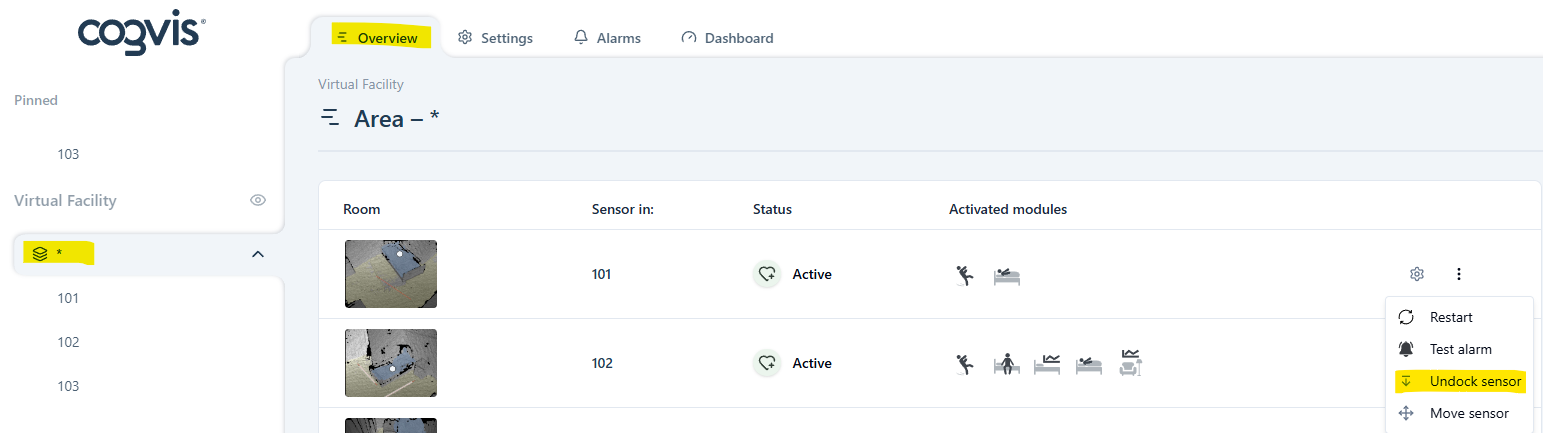
Click the three dots in the room list or grid view, then select Undock sensor.
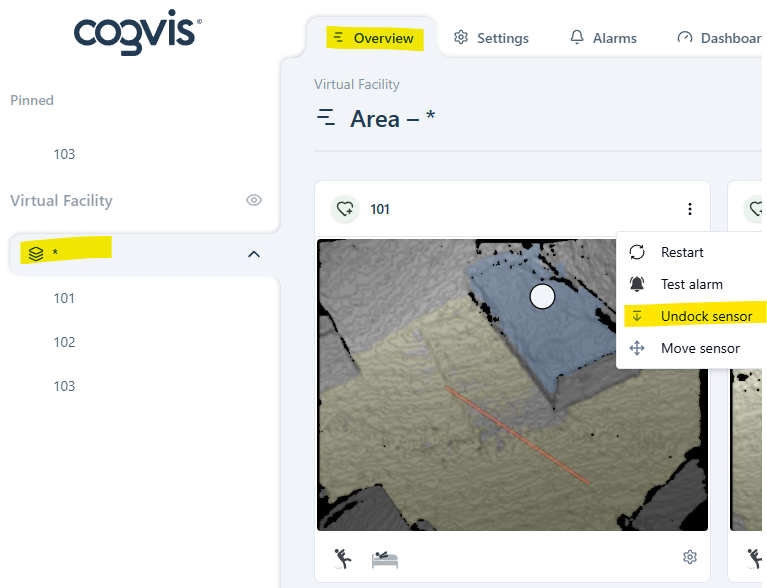
Alternativ kannst du auch in die Zimmerübersicht gehen und dort den Sensor abdocken.

For a Gen 2.0 cogvis companion, the sensor is automatically removed from the room once it is undocked.
How do I switch between areas and rooms on the platform?
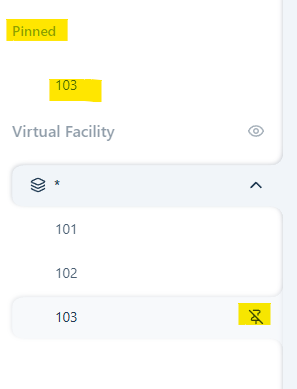
To switch between areas and rooms on the platform, use the navigation bar on the left.
Click on the area or room you want to access
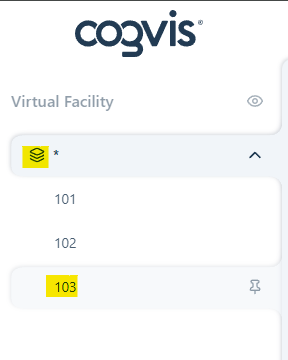
If needed, individual rooms can be pinned using the pin icon. Pinned rooms will appear above the areas.
Can I create/rename rooms myself?
No. It is not possible to create or rename rooms yourself on the platform. Rooms are created directly by us or our partners during installation. This ensures that the platform mirrors where the system is actually installed.
During installation, dockingstations and nurses presence buttons are mounted in the predefined rooms. It is not permitted to independently move dockingstations or nurse presence buttons, and doing so will result in an immediate loss of warranty.
Can I deactivate my sensor, for example during visiting hours or for an extended period, without having to delete the settings?
Yes! To deactivate a sensor, first click on the three dots in the room list or grid view in the area overview and then on Deactivate sensor.
For reactivation, follow the same steps as here.